App – What It Is and Why You Need It
The application is the official Android client for the colour prediction gaming platform. It gives you access to the full game library, wallet, VIP system, referral dashboard, and customer service chat. The app is not listed on Google Play because real-money gaming apps face restrictions in India. You install it by downloading the APK directly from the official website.
The APK is 45 MB. Installation takes 2 to 3 minutes on a 4G connection. The app runs on Android 6.0 Marshmallow or later. iOS users access the same platform through Safari, since Apple does not allow real-money gaming apps on the App Store.
This page covers everything about the app: system requirements, download steps, install troubleshooting, permissions, wallet setup, game library, and updates. By the end, you will know exactly how to install and run it on your phone.
App System Requirements
Check these specs before you download. Installing on an incompatible device causes crashes and freezes.
| Requirement | Minimum | Recommended |
|---|---|---|
| Android Version | Android 6.0 Marshmallow | Android 11 or newer |
| RAM | 2 GB | 4 GB or more |
| Free Storage | 150 MB | 500 MB or more |
| Network | 3G (2 Mbps) | 4G or 5G |
| Screen Size | 5 inches | 5.5 inches or larger |
| CPU | Quad-core 1.4 GHz | Octa-core 2.0 GHz or higher |
| iOS | Not available as native app | Access via Safari browser |
How to Download and Install on Android – 5 Steps
The install flow has five steps. Each takes under a minute.
- Open the Official WebsiteOpen tpplayofficial.in in Chrome or any mobile browser. Do not use third-party APK sites. Modified APKs often contain malware that steals passwords and OTPs.
- Tap the Download APP ButtonA gold Download APP button sits at the top of the home screen. Tapping it starts the APK download. On a 4G connection, the 45 MB file downloads in 30 to 60 seconds.
- Allow Install from Unknown SourcesAndroid blocks APKs from outside Google Play by default. Open Settings, then Security, then toggle on Install from Unknown Sources for Chrome. On newer Android versions, tap Settings → Apps → Special Access → Install Unknown Apps → Chrome → Allow.
- Install the APKOpen your Downloads folder and tap the APK file. A permission screen appears showing what the app needs. Tap Install. Installation completes in 30 to 60 seconds.
- Open and LoginTap Open on the final screen. Enter your registered mobile number and password, then verify with the 6-digit OTP. Your dashboard loads with the wallet balance and game tiles.
App Screenshots
These are the supplied app screenshots. Android permission and APK installation screens were not supplied.
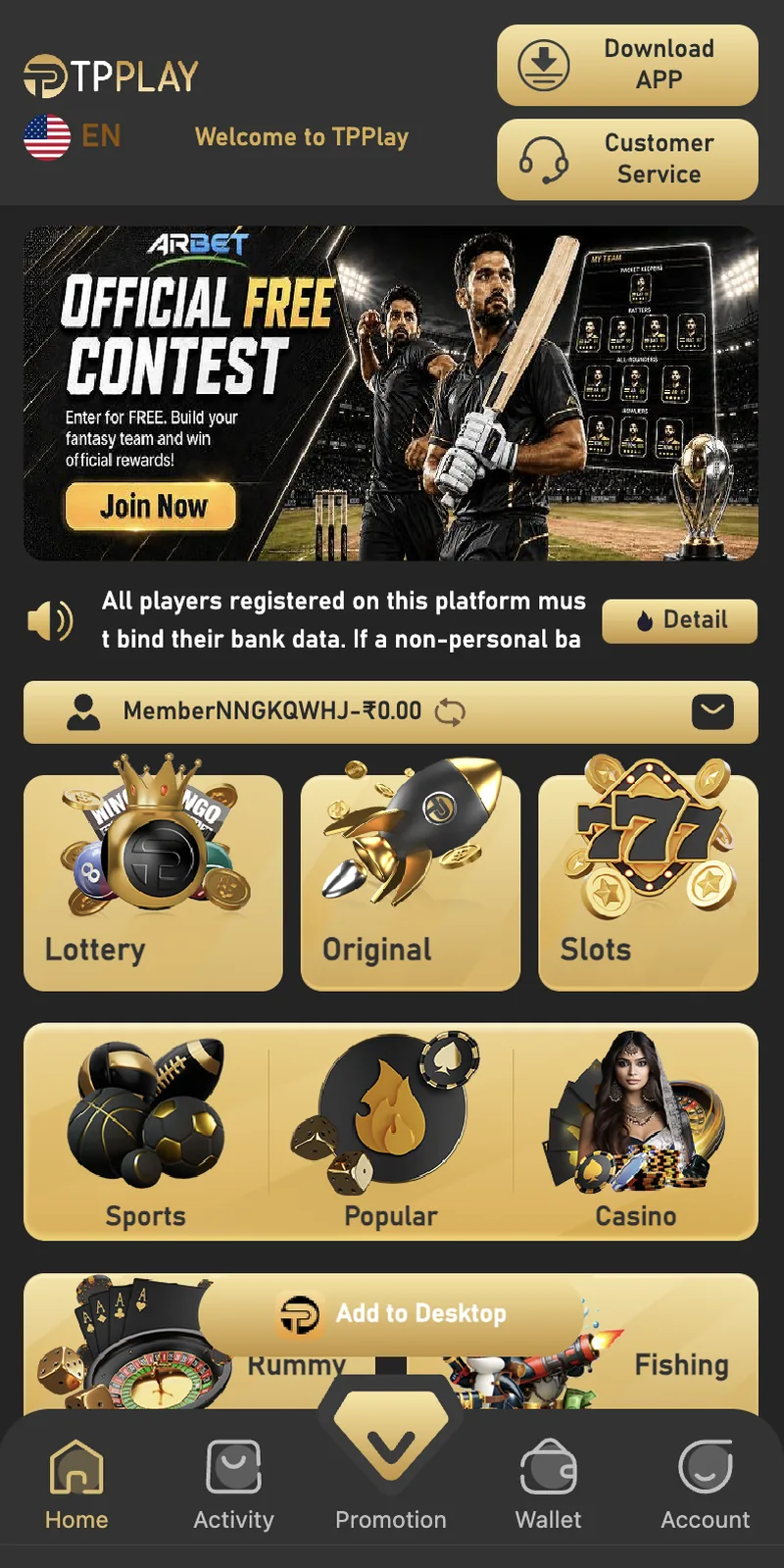
Home screen and game categories
Captured TP Play home screen and game categories.
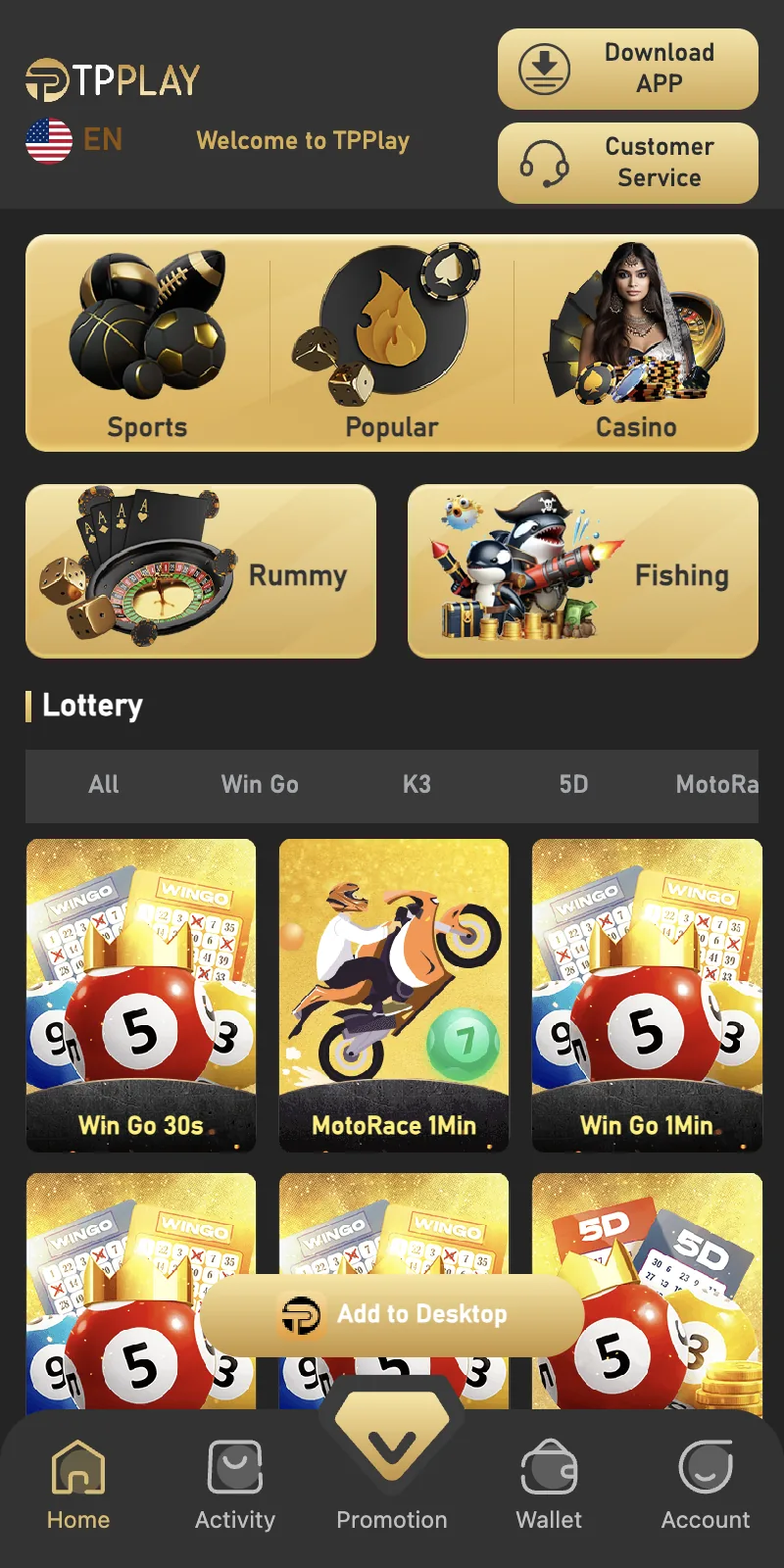
Win Go and MotoRace game list
Captured TP Play win go and motorace game list.
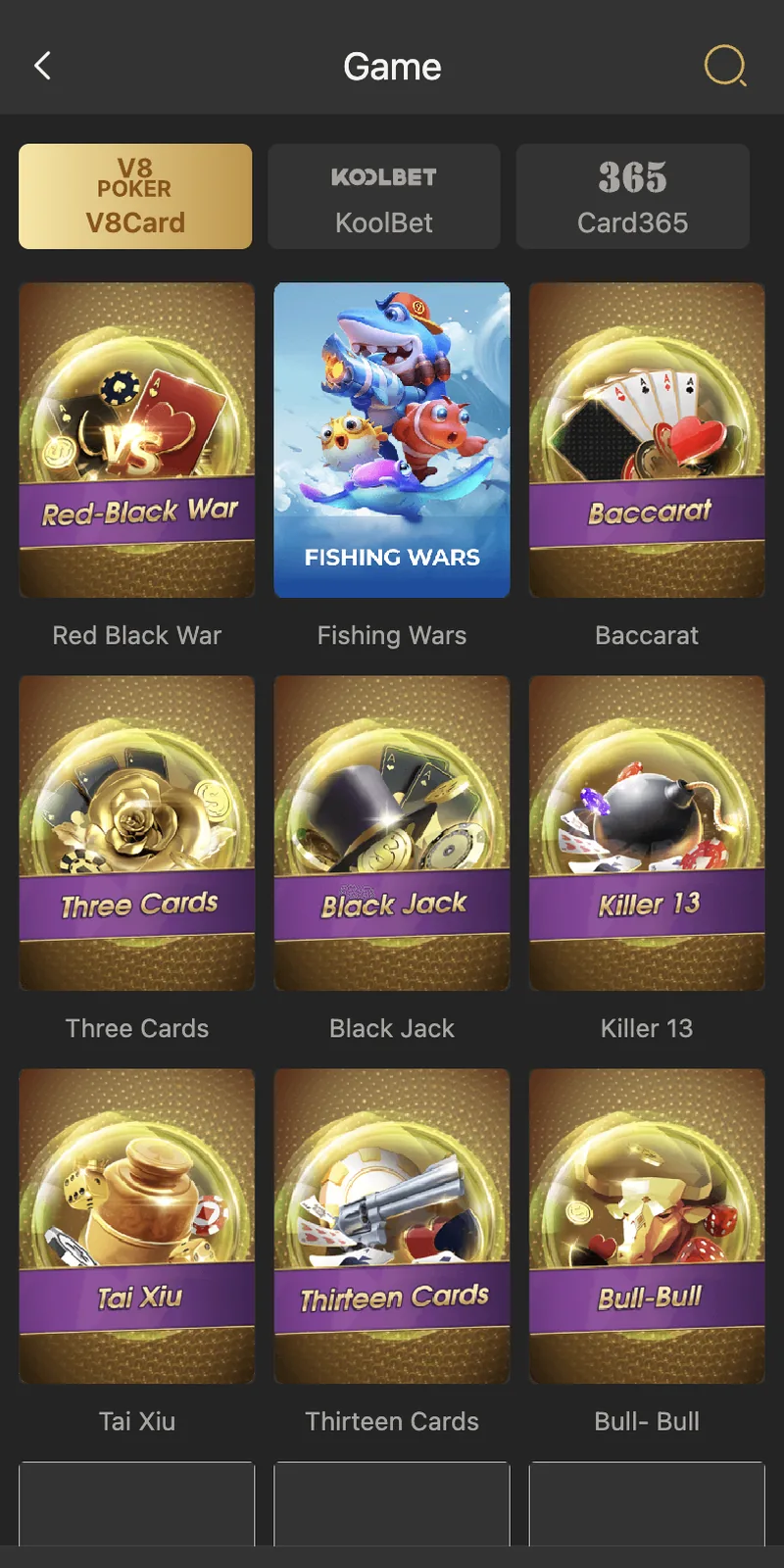
Casino and card game list
Captured TP Play casino and card game list.
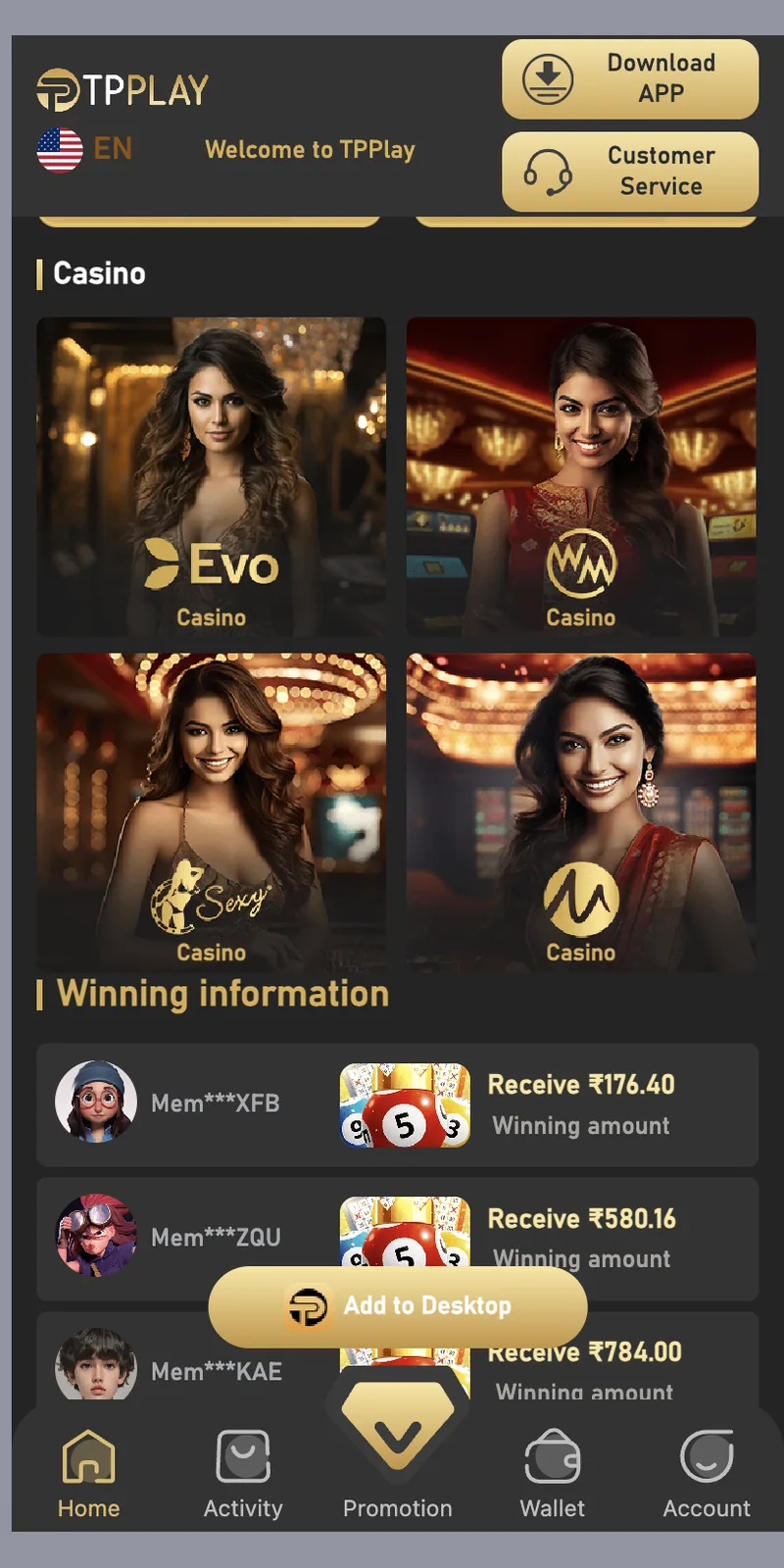
Live casino game providers
Captured TP Play live casino game providers.
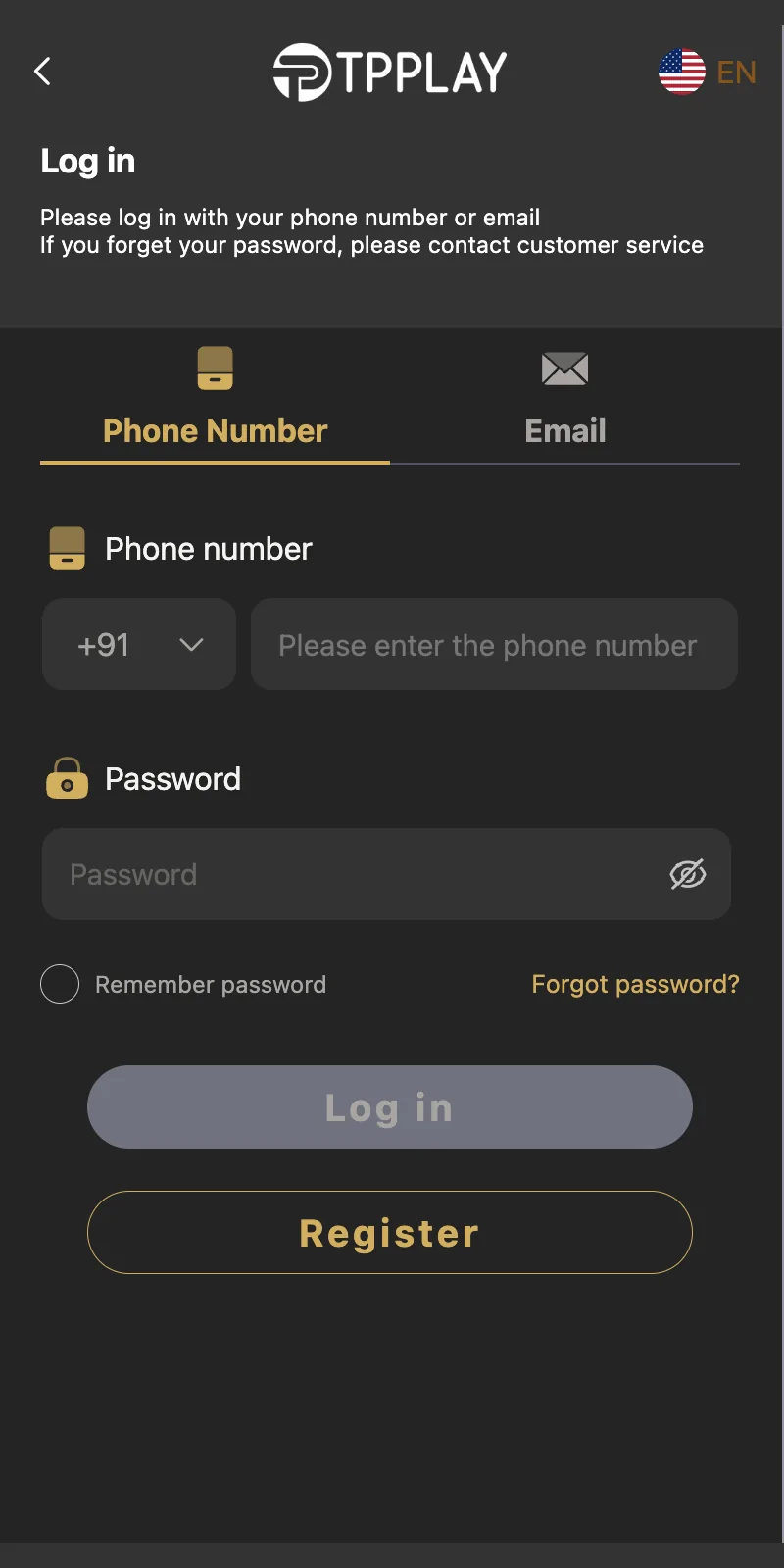
Login screen
Captured TP Play login screen.
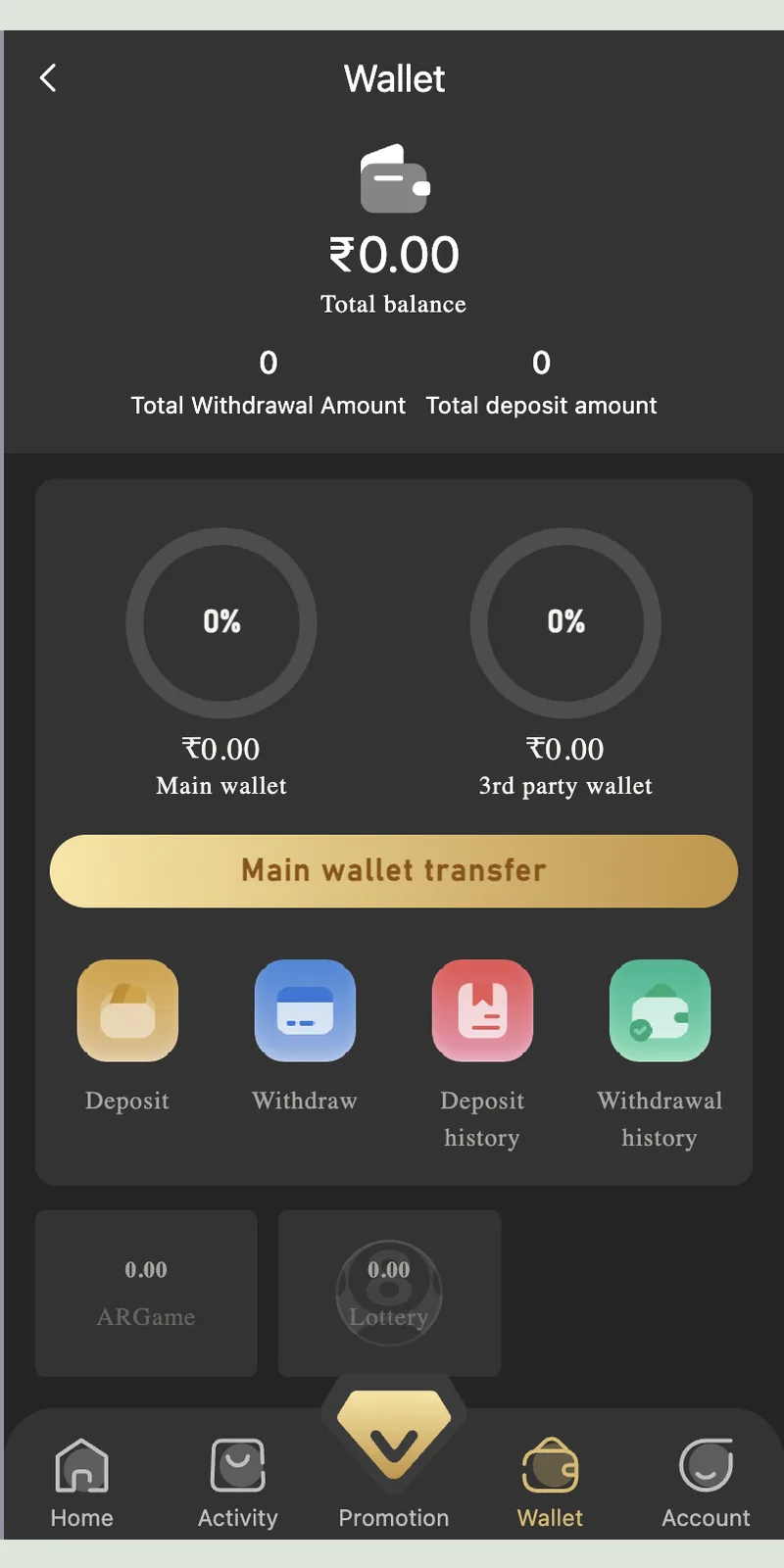
Wallet balance and payment buttons
Captured TP Play wallet balance and payment buttons.
How to Install on iPhone
Apple does not allow real-money gaming apps on the App Store. iPhone users access the platform through Safari.
- Open Safari and Visit the SiteType tpplayofficial.in in Safari. Do not use Chrome or Firefox on iOS — Safari handles the mobile layout best.
- Login or RegisterTap Login or Register at the top right. Enter your mobile number, password, and OTP.
- Add to Home ScreenTap the Share button at the bottom of Safari. Scroll down and tap Add to Home Screen. Name it "TPPLAY". Tap Add.
- Launch from Home ScreenThe icon appears on your home screen. Tapping it opens the site full-screen, without the Safari address bar. This gives an app-like experience without needing an App Store download.
APK Permissions Explained
During install, the app asks for several permissions. Here is what each one does.
| Permission | Why It Is Needed |
|---|---|
| Storage | Save game assets, cached images, and transaction receipts |
| Phone | Read device ID for account security and fraud prevention |
| SMS (optional) | Auto-fill login OTP for faster sign-in |
| Camera (optional) | Scan KYC documents for verification |
| Network Access | Sync wallet balance, game results, and live updates |
| Notifications (optional) | Alerts for bonuses, game results, and account activity |
The app does not request access to contacts, call logs, or location. If a downloaded APK asks for these permissions, it is not the official file. Uninstall it immediately.
App Features You Get After Install
Once installed and logged in, you have access to the full feature set:
🎮 15+ Game Modes
Win Go, Wingo, K3, 5D, Aviator, MotoRace, Rummy, Ludo, Cricket, Casino, Slots, Fishing, Lottery, Sports, and more. All games are inside the app.
💰 Wallet & Payments
Deposit via UPI-QR, Innate UPI-QR, UPI-QR PAY, USDT, and ARPay. Minimum deposit ₹100. Maximum ₹50,000 per transaction.
🏆 VIP System
Every ₹1 you bet earns 1 EXP. Reach 3,000 EXP for VIP1. Higher levels unlock monthly rewards and rebate percentages.
🎁 Bonus Center
Attendance bonus, betting rebate, Super Jackpot, Wheel of Fortune, gift codes, and top-up coupons — all accessible from the Promotion tab.
👥 Referral Dashboard
See your invite code, invitation link, direct subordinates, team subordinates, and commission earnings in the Agency section.
💬 Live Chat Support
24/7 customer service for login issues, deposit queries, and withdrawal problems. Response time is 5 to 15 minutes.
App vs Web Browser – Which One Should You Use?
| Feature | App (Android) | Web Browser |
|---|---|---|
| Installation | APK download required | No install needed |
| Speed | Faster after install | Slightly slower |
| Push Notifications | Yes | No |
| Auto OTP Fill | Yes | No |
| Storage Used | 45 MB | 0 MB |
| Game Library | Full | Full |
| Update Method | Manual APK update | Automatic |
| Offline Access | No | No |
If you play daily, install the Android APK. If you play occasionally, use the browser. iOS users have no choice but to use Safari.
12 App Install and Run Errors
1. "App Not Installed" Error
Cause: Conflicting app version already installed, or corrupted APK. Fix: Uninstall any previous version, clear your Downloads folder, and re-download from tpplayofficial.in.
2. APK Download Fails Midway
Cause: Unstable network or interrupted connection. Fix: Switch to mobile data if Wi-Fi is unstable. Retry the download. Use Chrome browser — some browsers block APK downloads.
3. "Parse Error"
Cause: Corrupted APK file or incomplete download. Fix: Delete the APK, clear browser cache, and download fresh. Verify the file size is 45 MB before installing.
4. Install Blocked by Play Protect
Cause: Google Play Protect flags APKs from outside the Play Store. Fix: Tap Install Anyway on the warning screen. Play Protect blocks unofficial APKs by default but does not stop manual installs.
5. App Crashes on Launch
Cause: Old Android version, low RAM, or corrupted app data. Fix: Clear app cache from Settings → Apps → TPPLAY → Storage → Clear Cache. If crashes persist, uninstall and reinstall.
6. Login Screen Not Loading
Cause: Weak network or server-side issue. Fix: Check your internet speed. If the network is fine, wait 5 minutes and retry. The server occasionally goes into maintenance mode.
7. Black Screen After Login
Cause: WebView component outdated. Fix: Open Google Play Store, search for Android System WebView, and tap Update. Restart the app.
8. App Slow or Laggy
Cause: Low RAM or too many background apps. Fix: Close background apps before launching. If lag persists, restart your phone. Keep at least 500 MB free storage.
9. OTP Not Auto-Filling
Cause: SMS permission not granted. Fix: Open Settings → Apps → TPPLAY → Permissions → SMS → Allow. Auto-fill works only when SMS permission is granted.
10. Payment Page Freezes
Cause: UPI app conflict or slow network. Fix: Close the app and your UPI app (PhonePe, Google Pay, Paytm). Reopen the app, retry the deposit.
11. "Update Required" Loop
Cause: Outdated app version. Fix: Uninstall the app, download the latest APK from the official website, and reinstall.
12. App Not Showing New Games
Cause: Cached game library. Fix: Open Account → Settings → Clear Cache. Restart the app. New games appear on the home screen.
How to Update the App
The Android APK does not update automatically like Play Store apps. You install new versions manually.
- Watch for the Update PromptOn launch, the app checks the server for a newer version. If one exists, a popup appears with an Update button.
- Tap UpdateTapping Update opens the official website in your browser. The new APK begins downloading automatically.
- Install Over the Old VersionYou do not need to uninstall the old app first. The new APK installs on top, preserving your login and wallet data.
- Verify the VersionAfter install, open Account → Settings → About to confirm the version number. Old version numbers mean the update failed.
If you do not see the update prompt, check the website manually every 30 days. Major game additions and security patches release on that schedule.
App Security and Privacy
- Download only from the official site. Third-party APK sites often bundle adware or credential-stealing malware.
- Verify permissions after install. If the app requests contacts, call logs, or location, it is not the official file. Uninstall immediately.
- Do not root your phone. Rooted devices lose the app's built-in security checks, exposing your wallet to interception.
- Use a screen lock. A PIN, fingerprint, or face unlock prevents someone who picks up your phone from opening the app.
- Log out on shared devices. If you log in on a friend's phone, tap Log Out from Account when finished.
- Keep the app updated. New versions patch security holes found in older builds.
App Install Checklist
- ✅ Android 6.0 or later (Android 11+ recommended)
- ✅ 150 MB free storage (500 MB recommended)
- ✅ 2 GB RAM or more
- ✅ Stable 4G or Wi-Fi connection
- ✅ Downloading from tpplayofficial.in only
- ✅ Install from Unknown Sources enabled
- ✅ Phone screen lock enabled
- ✅ Registered account ready (mobile number + password)
App FAQ
How do I download the app?
Is the app available on Google Play Store?
What is the APK file size?
Is the app safe to install?
How do I install on iPhone?
Why does Android block the APK install?
What Android version does the app need?
Does the app work on 4G?
Can I use the same account on two devices?
How do I update the app?
Does the app collect personal data?
How do I uninstall the app?