Withdrawal – Complete Payout Guide
A withdrawal moves money from your in-app wallet to your bank account, UPI ID, or USDT wallet. No KYC is required. You only add your UPI ID or bank account number once, and every withdrawal after that processes directly. The minimum is ₹110 for UPI, ARPay, and Bank Card. USDT starts at ₹1,000.
This page covers the complete withdrawal process. It explains the four payout methods, the ₹110 to ₹50,000 limits, the three-per-day cap, the 00:00 to 23:59 IST time window, and the twelve most common errors. By the end, you will know exactly how to move your winnings from the app to your bank without any document verification.
Why There Is No KYC
Many platforms in India ask for Aadhaar, PAN, and selfie verification before the first withdrawal. TP Play does not. The platform ties your account directly to your registered mobile number and your chosen payout method. When you request a withdrawal, funds are sent to the UPI ID or bank account you already saved. This design is why the average payout completes in 30 minutes to 3 hours instead of the 24-hour-plus timelines common on KYC-based apps.
For players looking for a platform with no document upload step, the process is explained in detail on the account creation page, and every subsequent payout follows the steps below.
Withdrawal Limits and Payout Methods
Four payout methods are available. Each has its own limits and processing time.
| Method | Minimum | Maximum | Processing Time |
|---|---|---|---|
| ARPay | ₹110 | ₹50,000 | 30 minutes to 3 hours |
| UPI | ₹110 | ₹50,000 | 30 minutes to 3 hours |
| Bank Card | ₹110 | ₹50,000 | 30 minutes to 3 hours |
| USDT (TRC-20) | ₹1,000 | ₹10,00,000 | 1 to 24 hours |
Daily limit: Three withdrawals per day. The counter resets at 00:00:00 IST. Time window: 00:00:00 to 23:59:00 IST daily. Requests outside the window process the next day.
UPI transfers are governed by the National Payments Corporation of India (NPCI) guidelines. The platform follows the same UPI standard used by PhonePe, Google Pay, and Paytm, which is why payouts land in your bank within the standard NPCI settlement window.
How to Withdraw – 5 Steps Without KYC
The withdrawal flow has five screens. Each takes 20 to 40 seconds.
- Open WalletLogin and tap Wallet in the bottom navigation. The wallet screen shows your balance, Deposit button, and Withdraw button. Check that your balance is above ₹110 before continuing.
- Tap WithdrawTap the Withdraw button. The withdrawal screen opens with a balance header and four payment method tiles at the top.
- Choose Payout MethodPick ARPay, UPI, Bank Card, or USDT. ARPay routes through UPI for fast payment. UPI works with any linked UPI ID. Bank Card transfers to your registered bank account. USDT sends crypto on the TRC-20 network.
- Enter Amount and Payout DetailsType your withdrawal amount. For UPI, enter your UPI ID. For Bank Card, enter your account number and IFSC code. For USDT, paste your TRC-20 wallet address. The screen shows your withdrawable balance and the net amount you will receive after processing. Save the payout details once — they autofill for every future withdrawal.
- Confirm WithdrawalTap Withdraw. The request enters the processing queue. Funds arrive in 30 minutes to 3 hours for UPI and Bank Card, or 1 to 24 hours for USDT. You can track the status in Withdrawal History.
Withdrawal Screenshots – Step by Step
Below are the five screens you will see during a withdrawal.
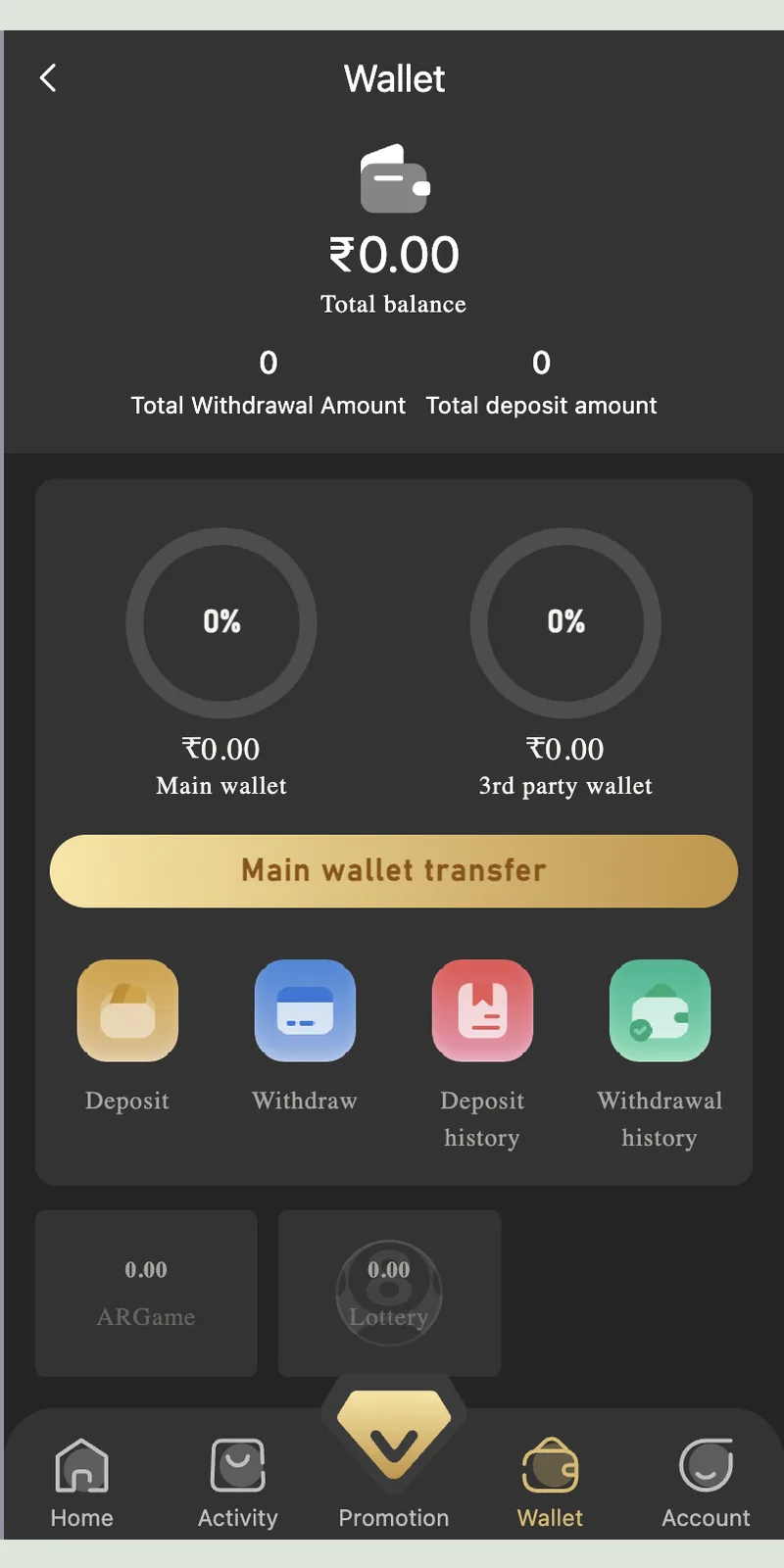
Wallet balance and payment buttons
Captured TP Play wallet balance and payment buttons.
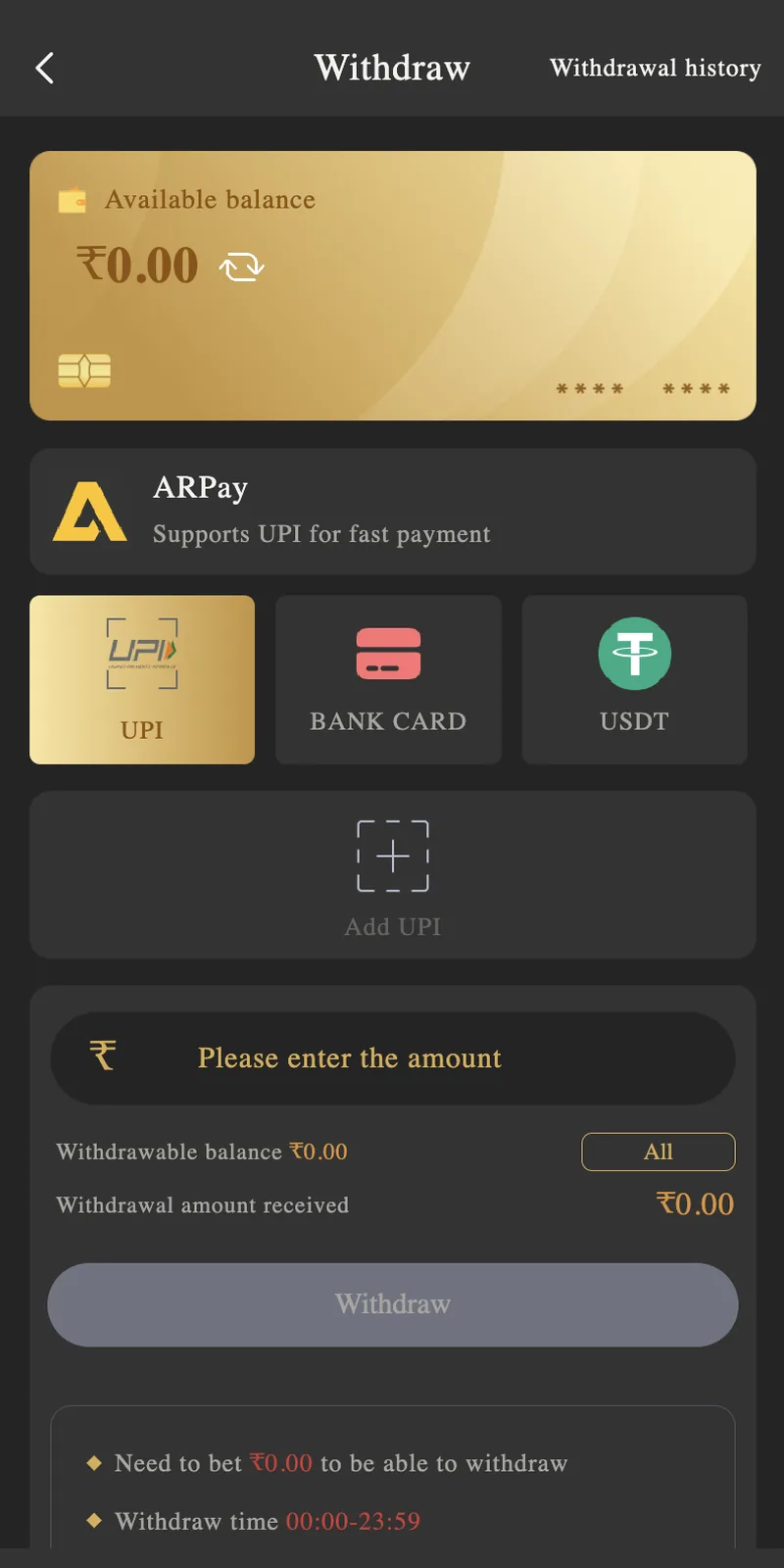
Withdrawal payment methods
Captured TP Play withdrawal payment methods.
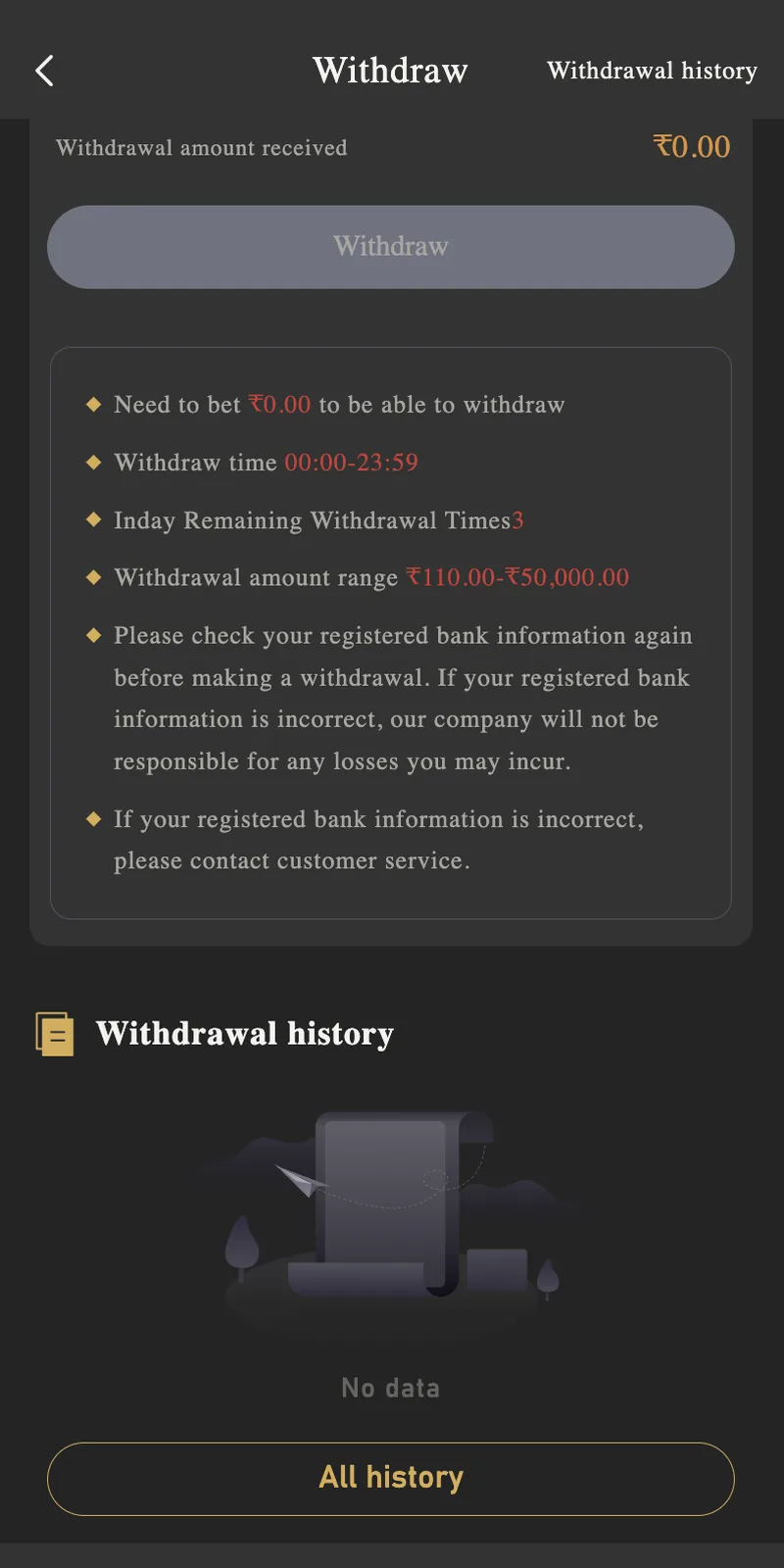
Withdrawal limits and rules
Captured TP Play withdrawal limits and rules.
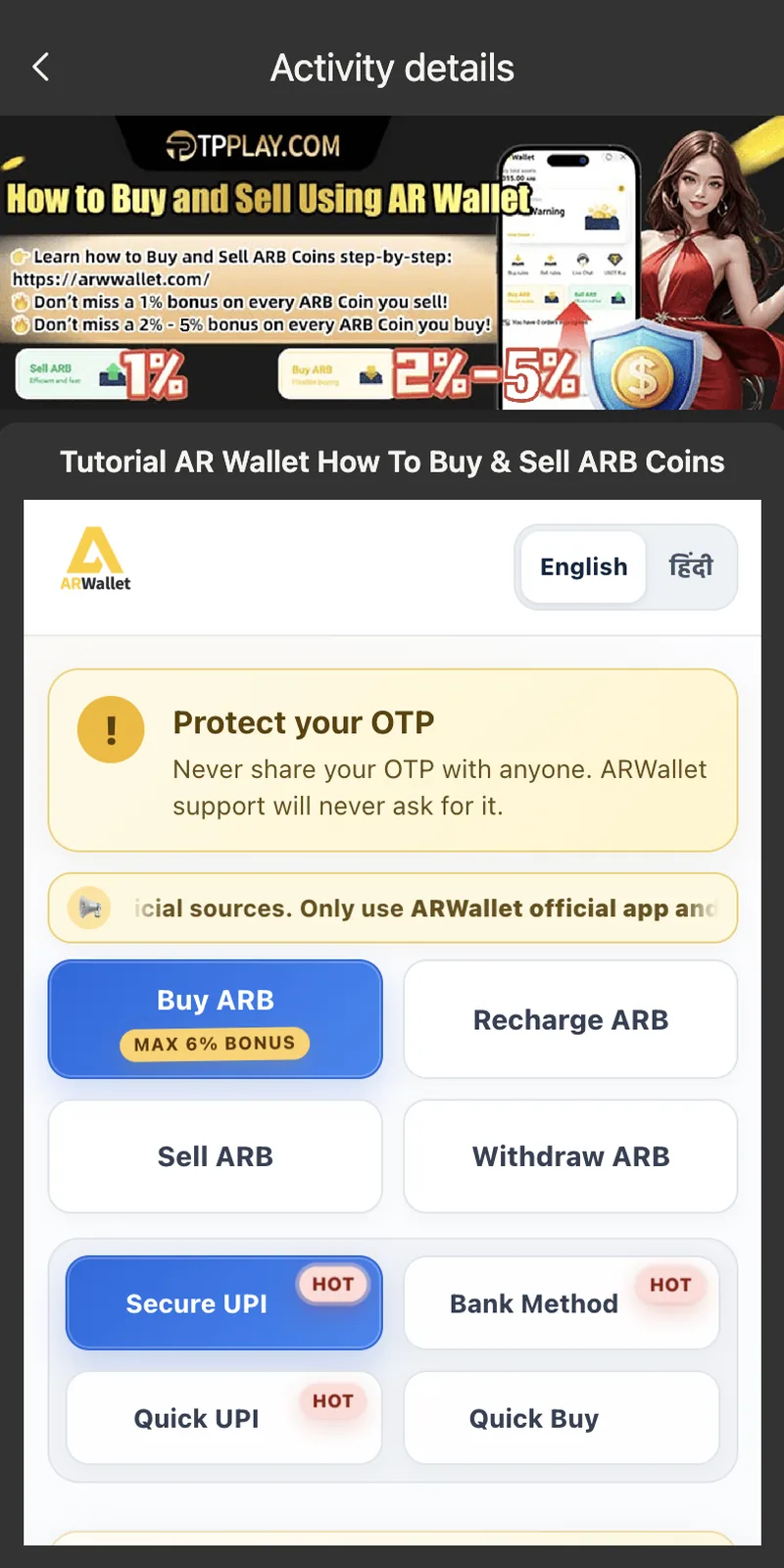
AR Wallet buy and sell tutorial
Captured TP Play ar wallet buy and sell tutorial.
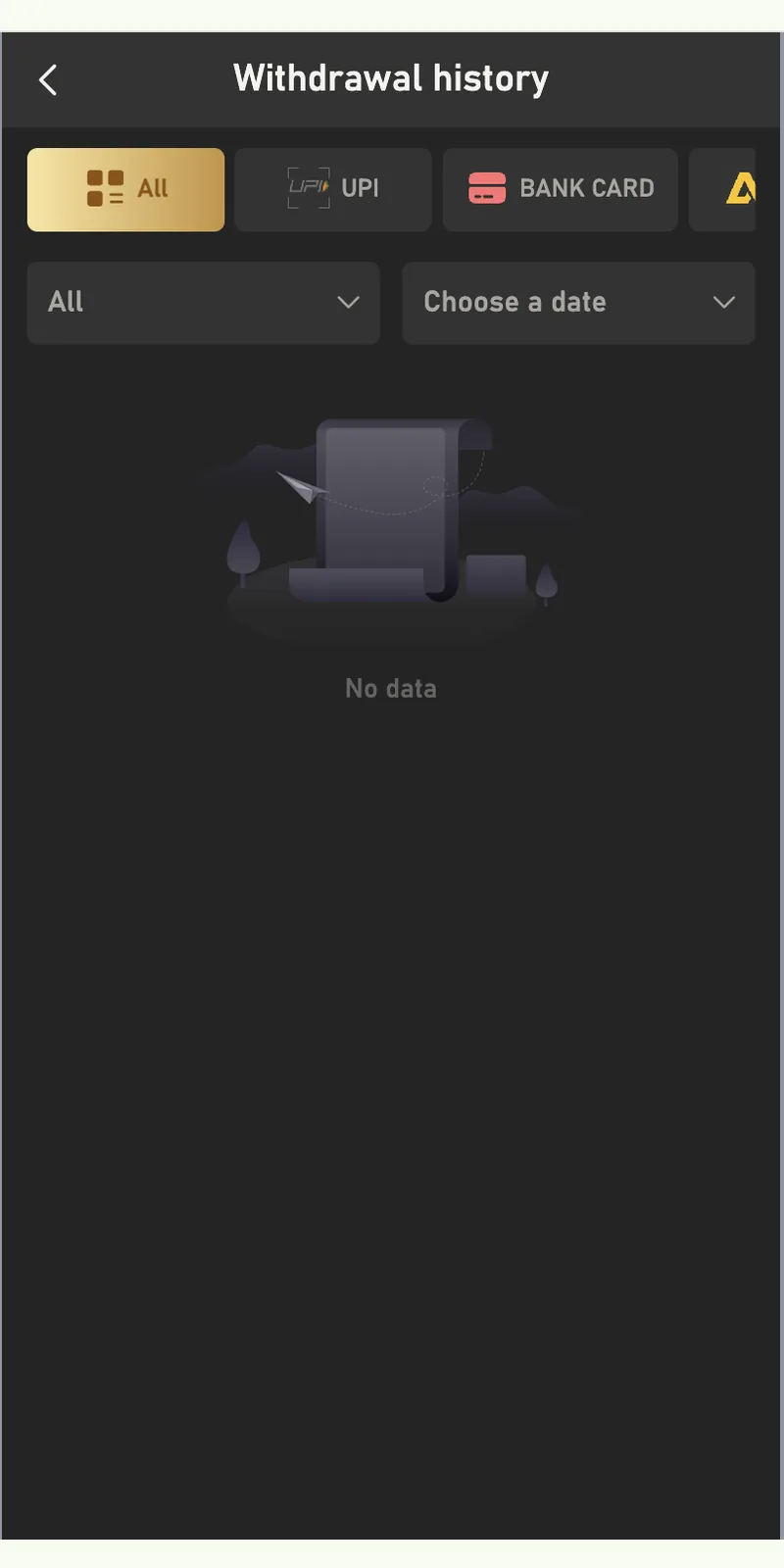
Withdrawal history
Captured TP Play withdrawal history.
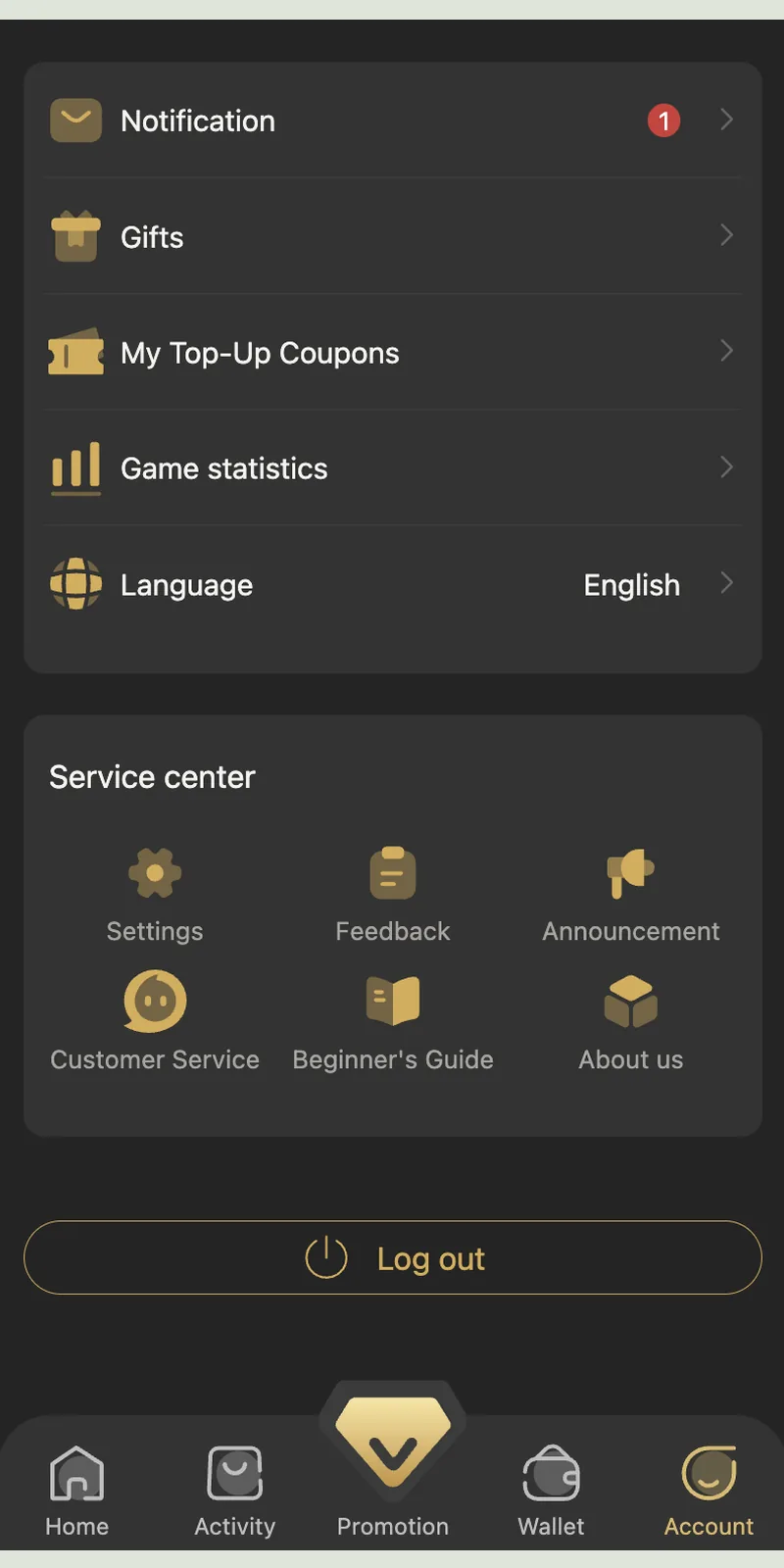
Customer care and service center
Captured TP Play customer care and service center.
Adding Payout Details Without KYC
Since there is no KYC, you add your payout details directly inside the withdrawal screen. The process takes 60 seconds and saves for future withdrawals.
Adding a UPI ID
Tap the UPI method. Enter your UPI ID in the format yourname@bankname — for example, 9876543210@paytm or yourname@ybl. Tap Save. The UPI ID links to your account for all future UPI withdrawals. Confirm the UPI ID is active by checking with your UPI app before saving.
Adding a Bank Account
Tap the Bank Card method. Enter your account number, IFSC code, and account holder name. The IFSC code is an 11-character code printed on your cheque book or available in your banking app. Save the details. Bank transfers use the standard IMPS or NEFT rails, which is why processing takes 30 minutes to 3 hours.
Adding a USDT Wallet
Tap the USDT method. Paste your TRC-20 wallet address. This is a 34-character string starting with the letter T. Verify the address character by character — crypto transfers to the wrong address cannot be reversed. Save the address to autofill for future withdrawals.
Withdrawal History and Order Tracking
Every withdrawal creates an order with a unique order number. Track the status in Wallet, then Withdrawal History.
| Status | What It Means | Action |
|---|---|---|
| Pending | Request received, awaiting processing | Wait 30 minutes to 3 hours |
| Processing | Under review by the payment team | Wait up to 3 hours |
| Success | Funds transferred to your bank or UPI | Check your bank statement |
| Failed | Incorrect payout details or bank rejection | Funds return to wallet within 24 hours |
The history screen filters by All, UPI, Bank Card, ARPay, or USDT. You can also filter by date range. Each entry shows the order amount, method, timestamp, and order number. Save order numbers for any support query.
12 Withdrawal Errors and How to Fix Them
1. Withdraw Button Greyed Out
Cause: Balance below ₹110 or daily 3-withdrawal limit reached. Fix: Check the wallet balance. If it is below ₹110, top up or wait for a game win. If you already made 3 withdrawals today, wait for the counter to reset at 00:00:00 IST.
2. "Insufficient Balance" Error
Cause: Wallet balance is below the withdrawal minimum for the selected method. Fix: UPI and Bank need ₹110 minimum. USDT needs ₹1,000 minimum. Switch methods or increase your balance.
3. Turnover Requirement Not Met
Cause: The withdrawal screen shows "Need to bet ₹X to be able to withdraw." Fix: Place additional bets of the shown amount. The requirement applies only to bonus-funded winnings — deposits from your own money carry a ₹0.00 requirement.
4. Withdrawal Failed Due to Bank Rejection
Cause: Wrong account number, IFSC code, or an inactive bank account. Fix: Log into your banking app and verify the account number and IFSC. Update the payout details in the withdrawal screen. Retry.
5. UPI ID Not Accepted
Cause: Typo in the UPI ID or UPI ID linked to a different name. Fix: Check that the format is correct — yourname@bankname. UPI IDs must be linked to your own bank account. Corporate or third-party UPI IDs are rejected.
6. Withdrawal Stuck in Pending
Cause: Peak-hour queue or bank maintenance window. Fix: Wait up to 3 hours. If the status still shows Pending after 3 hours, contact in-app support with the order number.
7. Funds Deducted But Not Arrived
Cause: Bank processing delay or UPI settlement queue. Fix: Check your bank statement after 3 hours. If funds are still not visible, share the order number and bank statement with support.
8. Withdrawal Cancel Button Not Working
Cause: Withdrawals cannot be cancelled once submitted. Fix: Wait for the request to process. If you need a different amount, wait for the current request to complete and submit a new one.
9. USDT Withdrawal Not Confirming
Cause: Wrong wallet address or wrong network. Fix: Confirm your USDT wallet supports TRC-20. ERC-20 and BEP-20 addresses do not receive TRC-20 funds. Wrong-network transfers cannot be recovered.
10. App Crashes During Withdrawal
Cause: Low RAM or corrupted app data. Fix: Close background apps. Clear cache from Account, then Settings. Restart the app. Any withdrawal request already submitted stays safe — check history after reopening.
11. "Withdrawal Time Window Closed"
Cause: The window is 00:00:00 to 23:59:00 IST. Fix: Submit again after 00:00:00 IST the next day. Pending requests auto-process within the next window.
12. Bonus Balance Included But Not Withdrawable
Cause: The wallet shows two balances — main wallet and bonus wallet. Fix: Only the main wallet is withdrawable. Bonus funds stay locked for gameplay. Check the withdrawable balance on the withdrawal screen before submitting.
Withdrawal Security Rules
- Use your own bank or UPI. The account holder name should match the name you registered with. Third-party transfers get rejected by the bank and return to your wallet.
- Verify payout details before submitting. A single wrong digit in the account number or IFSC code causes the transfer to fail. Double-check every field the first time you save them.
- Never share OTPs. Neither the platform nor your bank asks for OTPs over chat or phone. Anyone who asks is running a scam.
- Do not reuse passwords. The password protecting your account should be unique to this platform.
- Enable screen lock. A PIN, fingerprint, or face unlock prevents someone who picks up your phone from initiating a withdrawal.
- Avoid public Wi-Fi. Public networks expose your banking session. Use mobile data or home Wi-Fi. Public Wi-Fi risks are well documented — a few seconds on a shared network is enough for a session hijack if the site is not protected.
- Track every withdrawal. Save the order number and check the status within 24 hours. Report anomalies to support immediately.
Withdrawal vs Deposit – Key Differences
| Feature | Deposit | Withdrawal |
|---|---|---|
| Minimum | ₹100 | ₹110 (UPI/Bank/ARPay) or ₹1,000 (USDT) |
| Maximum | ₹50,000 | ₹50,000 (UPI/Bank/ARPay) or ₹10,00,000 (USDT) |
| KYC Required | No | No |
| Daily Limit | No fixed cap | 3 withdrawals per day |
| Processing Time | 30 seconds | 30 min to 3 hours |
| Bonus | 2% on ARPay and USDT | None |
| Time Window | Anytime | 00:00:00 to 23:59:00 IST |
For the deposit side, see the deposit guide. For the wallet overview, see the app install guide.
Withdrawal on Different Devices
Android
Android users withdraw through the app. The UPI app opens directly for authentication. Average completion time: 2 minutes.
iPhone
iOS users withdraw through Safari. UPI apps open through the iOS share sheet. Average completion time: 3 minutes.
Desktop Web Browser
Desktop users open the site in Chrome, Firefox, or Edge. The withdrawal form scales to larger screens. UPI authentication still happens through your phone. Average completion time: 3 to 4 minutes.
Multiple Devices
Withdrawals link to your account, not your device. You can start a withdrawal on Android and check the status on desktop. Only one active session is allowed at a time.
Withdrawal Checklist
- ✅ Wallet balance above ₹110 (or ₹1,000 for USDT)
- ✅ Payout details saved (UPI ID, bank account, or USDT address)
- ✅ Payout account is in your own name
- ✅ Turnover requirement met (withdrawal screen shows ₹0.00)
- ✅ Daily withdrawal count below 3
- ✅ Time window open (00:00:00 to 23:59:00 IST)
- ✅ Payout details double-checked
- ✅ Stable 4G or Wi-Fi connection
With all items confirmed, the withdrawal completes in 30 minutes to 3 hours.
Withdrawal FAQ
Is KYC required for TP Play withdrawal?
What is the minimum withdrawal amount?
How long does a withdrawal take?
How many withdrawals can I make per day?
Why can't I withdraw my bonus money?
What is the withdrawal time window?
What does 'Need to bet ₹0.00 to be able to withdraw' mean?
Can I withdraw to someone else's bank account?
What happens if the withdrawal fails?
Is USDT withdrawal faster than UPI?
Does TP Play charge withdrawal fees?
Can I cancel a withdrawal request?
Related Guides