Login – Complete Sign In Guide
Login uses your registered mobile number, your 8-character password, and a 6-digit OTP sent to your phone. There is no email login and no social sign-in. Every login requires all three inputs. The whole process completes in under 60 seconds when your network is stable.
This guide explains the login process step by step. It covers the exact fields you fill, how the OTP system works, how to fix the twelve most common errors, how to reset a forgotten password, and how to handle a changed mobile number. It also covers the security features that protect your account and wallet.
What Login Actually Does
Login confirms three things: that you own the mobile number linked to the account, that you know the account password, and that you have access to the SIM card that receives the OTP. All three checks pass before the app grants access to your wallet, game history, and account settings. This three-factor design is why the platform does not use email login — email alone is not strong enough to protect real-money balances.
What You Need Before Logging In
Login requires three items. Missing any one will stall the process.
📱 Registered Mobile Number
The 10-digit +91 number you used during registration. Login only works with this exact number. If your SIM is inactive, use a new SIM from the same operator and contact support to update it.
🔑 Your Password
The 8-character password set during registration. Passwords are case-sensitive. Use the eye icon to check what you typed before submitting.
📶 Working Internet
4G, 5G, or Wi-Fi with at least 2 bars of signal. The app does not support offline login — the OTP delivery and wallet sync both require a live connection.
How to Login – 4 Steps
The login flow has four screens. Each takes 10 to 20 seconds.
- Open the App or WebsiteLaunch the Android app, iOS app, or open tpplayofficial.in in your mobile browser. All three paths show the same login form. Do not use third-party APK sites — fake apps steal passwords and OTPs.
- Enter Your Mobile NumberType the 10-digit mobile number linked to your account. The +91 country code is pre-selected. Do not add spaces, hyphens, or the +91 prefix manually — the field already includes it.
- Enter Your PasswordType your 8-character password. Tick Remember Password if you want the app to save your credentials on this device. If you forgot the password, tap Forgot Password below the field and follow the reset flow.
- Verify the OTPTap Login. A 6-digit OTP arrives on your registered mobile number within 30 seconds. Enter it in the OTP field. On success, the app loads your home screen with your wallet balance and game list.
Login and Account Screenshots
The supplied screenshots show the login form and account screens. A separate OTP verification screenshot was not supplied.
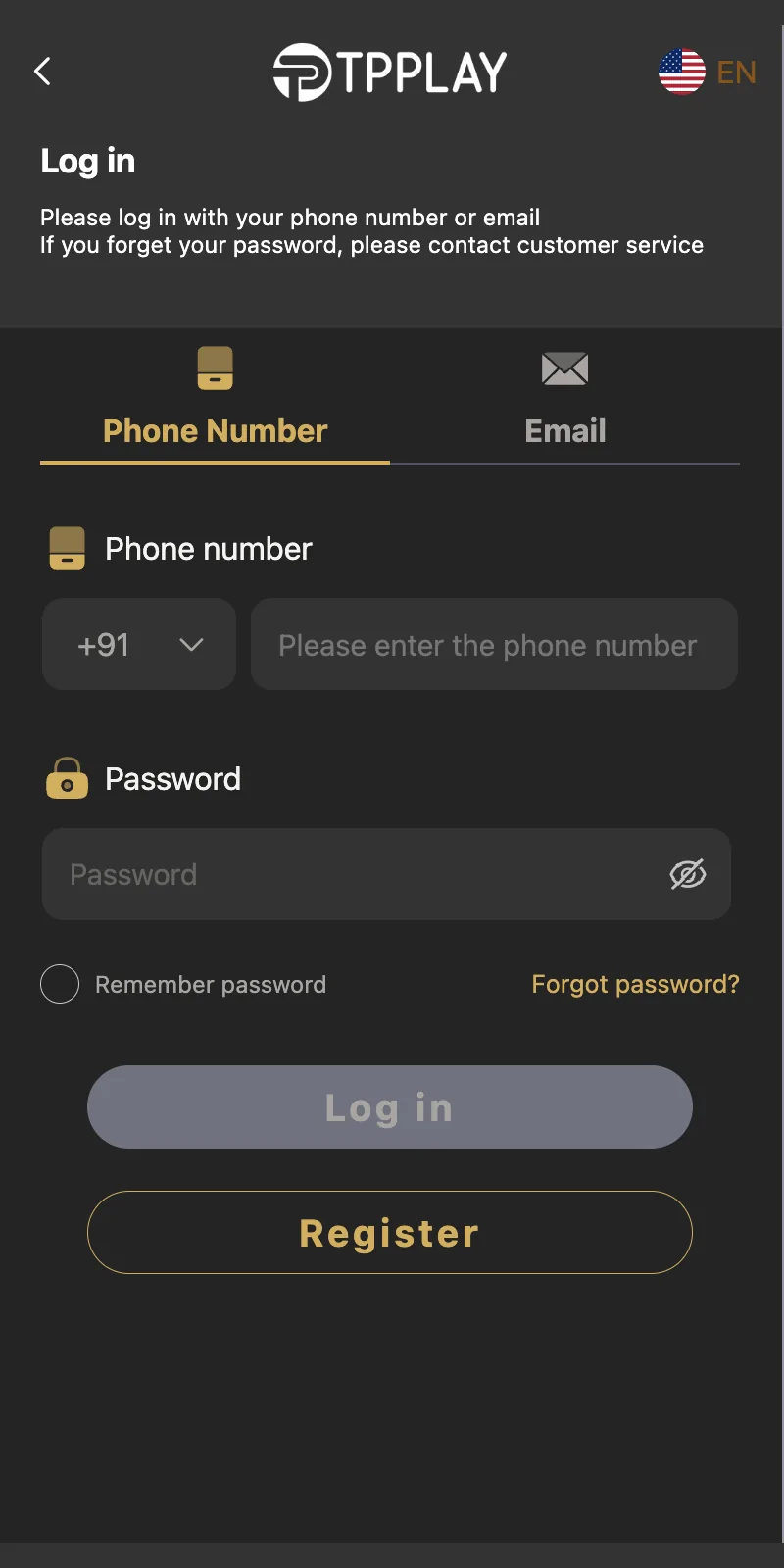
Login screen
Captured TP Play login screen.
Login screen
Captured TP Play login screen.
Login screen
Captured TP Play login screen.
Login screen
Captured TP Play login screen.
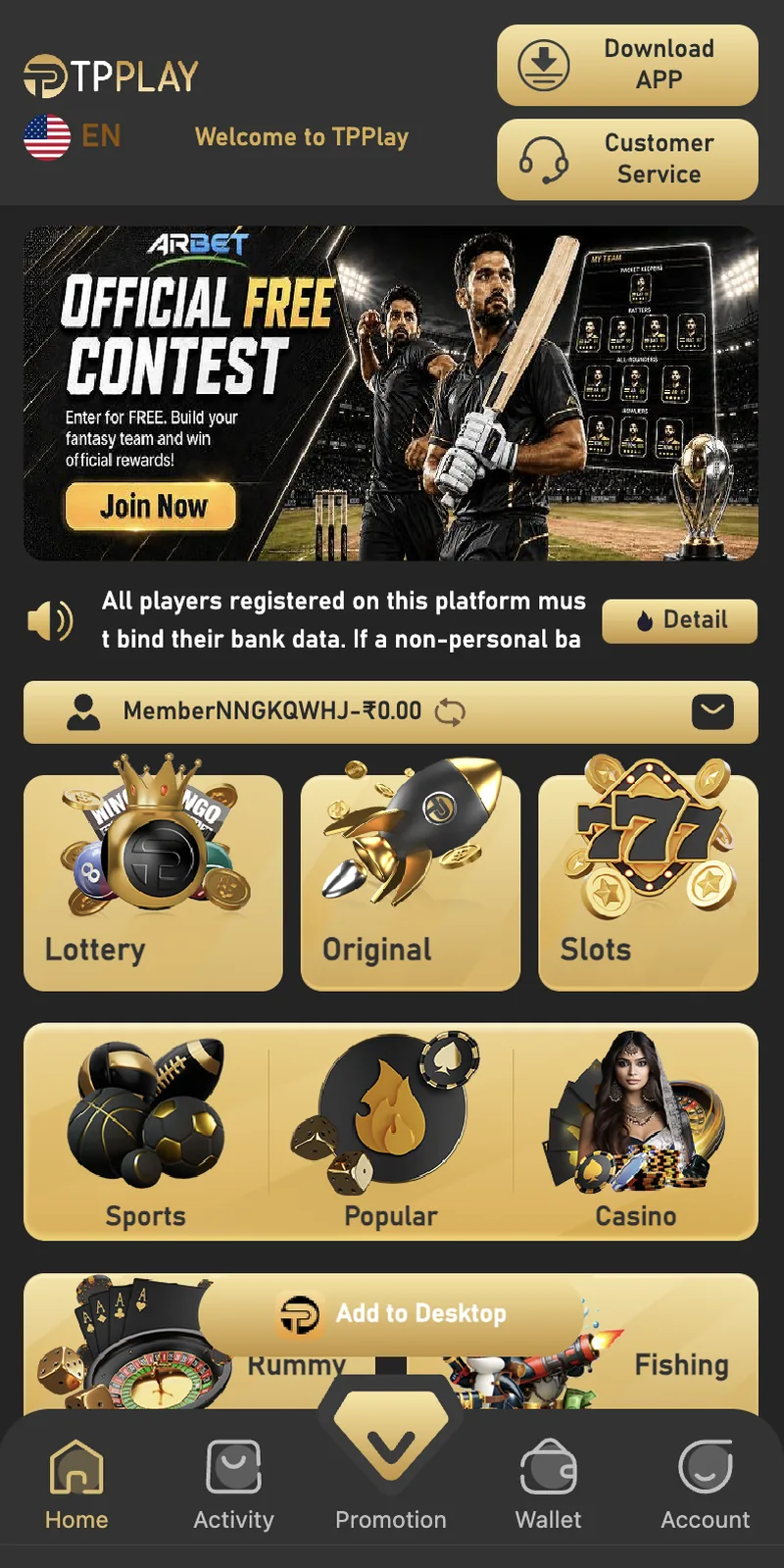
Home screen and game categories
Captured TP Play home screen and game categories.
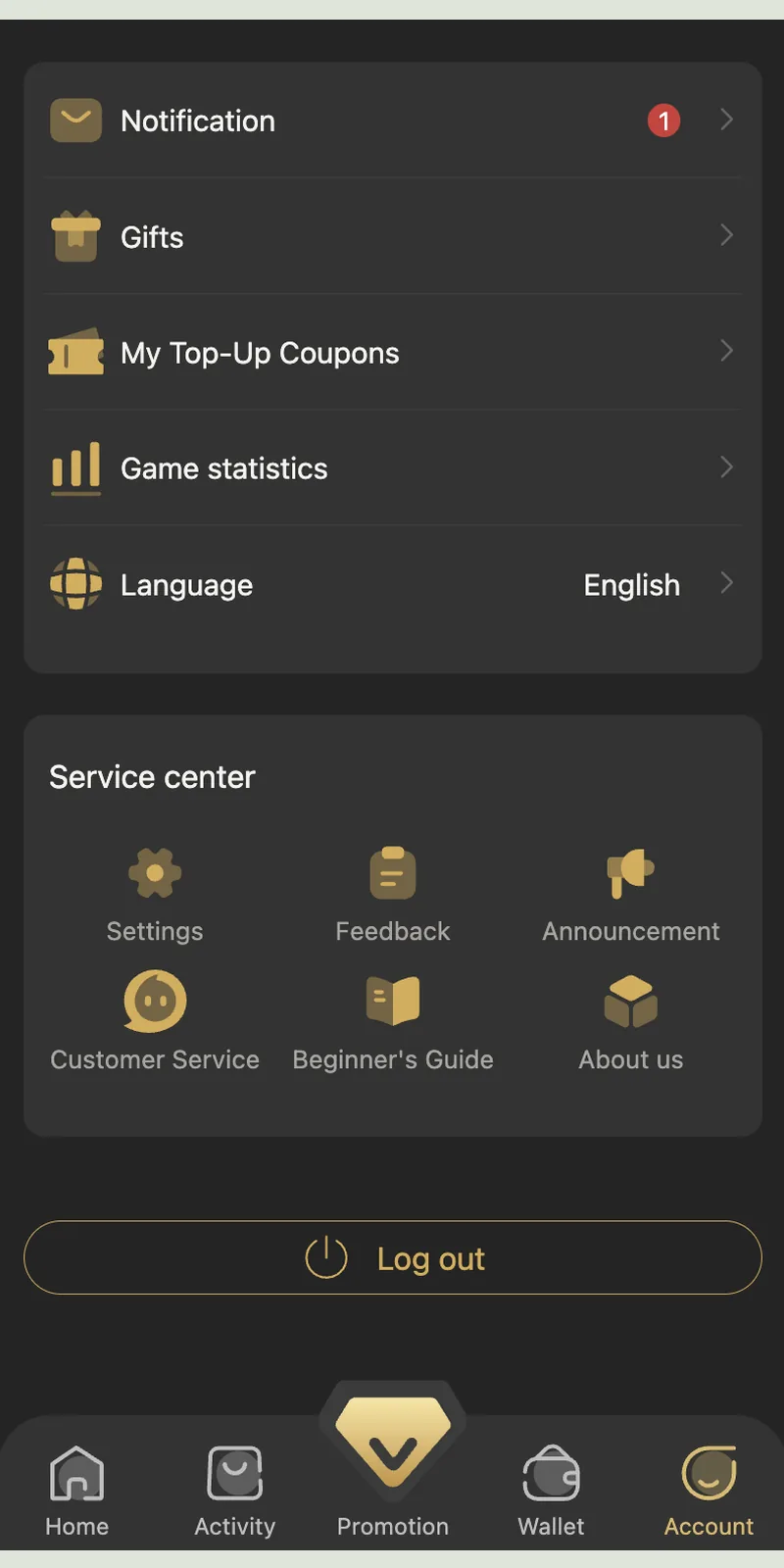
Customer care and service center
Captured TP Play customer care and service center.
How to Reset a Forgotten Password
If you cannot remember your password, use the Forgot Password option. The reset flow takes 90 seconds.
- Tap Forgot PasswordThe link sits below the password field on the login screen. Tapping it opens the password reset form.
- Enter Your Mobile NumberType the 10-digit number linked to your account. The system checks that the number is registered before sending the OTP.
- Verify with OTPA 6-digit OTP arrives on your mobile. Enter it in the verification field. The OTP expires in 60 seconds.
- Set a New PasswordEnter an 8-character password with at least one capital letter and one number. Type the same password in the Confirm Password field.
- Login with the New PasswordReturn to the login screen and enter the new password. Login completes normally after OTP verification.
Login vs Register vs KYC
These three steps do different things. Knowing the difference prevents confusion.
| Step | When | What It Does | Repeat |
|---|---|---|---|
| Login | Every session | Accesses the existing account using mobile number, password, and OTP | Every time you open the app |
| Register | Once, first time | Creates the account with mobile number, password, and invite code 148751812078 | Once |
| KYC | Before first withdrawal | Verifies identity with Aadhaar, PAN, and bank details | Once |
Login is your recurring access key. Register is the one-time account creation. KYC is the compliance step before withdrawals.
12 Login Errors and How to Fix Them
These twelve problems appear most often on the support channel. Each fix below is what the support team recommends.
1. OTP Not Arriving
Wait 60 seconds. Check your mobile signal — OTP delivery fails on weak networks. Clear your SMS inbox if it holds more than 500 messages. Tap Resend OTP once. If the OTP still does not arrive within 5 minutes, open the in-app customer service chat.
2. "Mobile Number Not Registered"
The number is not linked to an account. Two possibilities: you typed a different number than the one you registered with, or you never completed registration. Switch to the Register page to create an account.
3. "Incorrect Password"
Passwords are case-sensitive. Check for capital letters. Verify that Caps Lock is off. Use the eye icon to see what you typed. If the password still fails, tap Forgot Password and reset it through OTP.
4. Account Locked After Failed Attempts
The account locks after 5 wrong password attempts. The lock clears automatically after 30 minutes. Contact support with your UID for faster unlock. Do not keep retrying — each failed attempt extends the lock.
5. OTP Expired
OTPs expire 60 seconds after they are sent. If your OTP expired, tap Resend OTP and enter the new 6-digit code within 60 seconds of receiving it.
6. Login Button Greyed Out
The mobile number field is empty, the password field is empty, or the password is shorter than 8 characters. Fill both fields and ensure the password meets the 8-character minimum.
7. App Crashes on Login
Uninstall the app. Download the latest APK from tpplayofficial.in. Ensure 500MB free storage. Retry. Old app versions often fail after platform updates.
8. "Session Expired" Message
The app logs out inactive sessions after 15 minutes. Log in again with your mobile number and password. No data is lost when the session expires.
9. Login Works on Android But Not iPhone
iOS Safari blocks cookies by default in some privacy modes. Open Settings, then Safari, then turn off Prevent Cross-Site Tracking. Reload the login page and retry.
10. "Too Many Login Attempts"
The system blocks you for 30 minutes after 5 failed attempts. Wait the full 30 minutes. Contact support with your UID if you need faster access.
11. Changed Mobile Number
Login requires the original registered number. If you changed SIMs, contact customer support through the live chat. Submit your KYC documents (Aadhaar, PAN, bank details). Support transfers your account to the new number in 24 to 48 hours.
12. Login Succeeds But Wallet Balance Shows ₹0.00
Log out and log in again. If the balance still shows ₹0.00, check your deposit history under Wallet. If a deposit is missing, submit the receipt through the in-app support chat.
Login Security Features
The platform uses five security layers to protect your account. Understanding them helps you stay safe.
256-bit SSL Encryption
All login data travels over HTTPS with 256-bit SSL encryption. Passwords and OTPs never transmit in plain text. This blocks interception on public Wi-Fi networks.
6-Digit OTP on Every Login
Every login requires a fresh 6-digit OTP. Someone who knows your password still cannot log in without access to your SIM card.
15-Minute Session Timeout
Inactive sessions log out after 15 minutes. If you leave your phone unlocked, no one can access your wallet without logging in again.
Device Binding
After 3 successful logins from the same device, the account binds to that device. Logging in from a new device triggers additional OTP verification.
Failed Login Lockout
5 failed password attempts lock the account for 30 minutes. This blocks brute-force password guessing.
Email-Free Design
Because the platform does not use email, phishing attacks that target email inboxes cannot compromise your account. Only someone with your SIM can log in.
Login on Different Devices
Android
Download the APK from the official website. Android login is the fastest because the app auto-fills the OTP from SMS. Recommended for daily use.
iPhone and iPad
iOS users log in through the Safari browser or the iOS app. Enable SMS auto-fill in Settings to speed up OTP entry. The form layout matches Android exactly.
Desktop Web Browser
Desktop login works in Chrome, Firefox, Edge, and Safari. You must type the OTP manually from your phone. Use this path when your phone is charging or unavailable.
Multiple Devices
Only one active session is allowed. Logging in on a new device automatically logs you out on the previous device. To switch between devices, log out on the first device before logging in on the second.
What to Do After Logging In
- Check Your Wallet BalanceOpen Wallet to see your current balance. New accounts show ₹0.00. Existing accounts show the last recorded balance.
- Verify Your UIDOpen Account and note the numeric UID shown next to your username. Save it — you need it for support tickets.
- Review NotificationsCheck the notification bell for bonuses, gift codes, or platform updates. Unread notifications show a red badge count.
- Deposit If NeededIf your balance is low, open Wallet, tap Deposit, and choose from UPI-QR, Innate UPI-QR, UPI-QR PAY, USDT, or ARPay. Deposits credit within 30 seconds.
- Start PlayingPick from Win Go, Wingo, K3, 5D, Aviator, MotoRace, Rummy, Ludo, Cricket, Casino, Slots, or Fishing.
Login Security Rules You Must Follow
- Never share the OTP. Customer support never asks for OTPs. Anyone who asks is running a scam.
- Use a unique password. Do not reuse a password from Gmail, Facebook, or your bank. Password reuse is the top cause of account theft.
- Enable phone screen lock. A PIN, fingerprint, or face unlock prevents someone who picks up your phone from opening the app.
- Avoid public Wi-Fi. Public networks expose login data. Use mobile data or home Wi-Fi for login.
- Verify the domain. The official login site is tpplayofficial.in. Fake clones exist with similar spellings like tpplay-official.com or tpplayofficial.net.
- Log out on shared devices. If you log in on a friend's phone, tap Log Out from the Account section when you finish.
- Report suspicious activity. If you notice unfamiliar game history or wallet changes, contact support immediately and change your password.
Login FAQ
How do I login?
What if I don't receive the login OTP?
How do I reset my password?
Can I login with email?
Why is my account locked?
What if I changed my mobile number and cannot login?
Is login safe?
Why does the app log me out automatically?
Can I stay logged in?
How many devices can I login at once?
What is my UID?
Can I login without internet?